Connecting macOS via PPPoE
macOS can connect directly to the Wifibri network using PPPoE.
This guide was created using macOS Monterey. Some screens may look slightly different on newer versions of macOS.
Step 1: Open Network Settings
Open System Preferences and click Network.
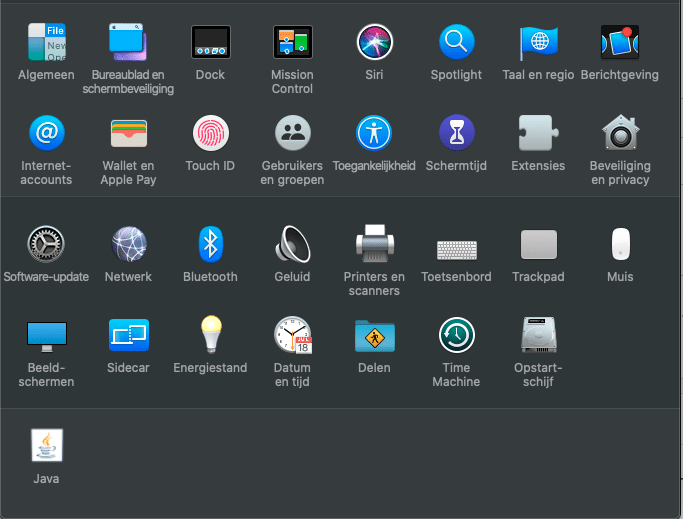
You will see the following menu.
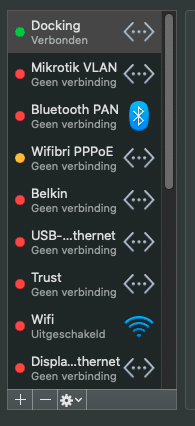
Step 2: Create a New PPPoE Connection
Click the + button at the bottom of the window to add a new network connection.
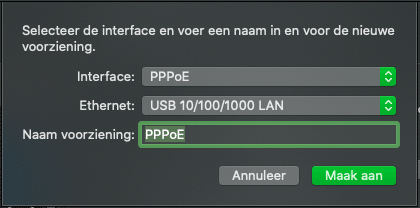
Configure the connection as follows:
- Interface: PPPoE
- Ethernet: Select your wired network adapter
- Service Name: Choose a recognizable name, for example PPPoE
Click Create.

Step 3: Configure the Connection
The new PPPoE connection will now appear in the list of network services.
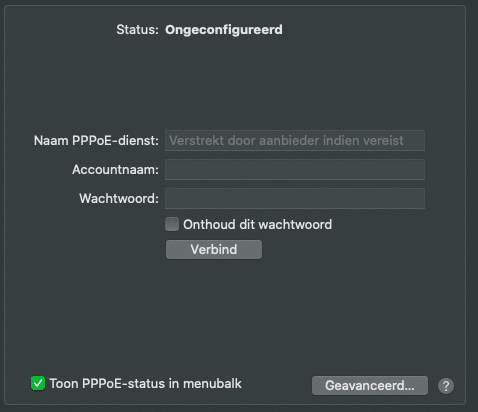
Select the connection and enter your Wifibri credentials.
- Account Name: Your Wifibri username
- Password: Your Wifibri password
- Remember this password: Enable this option

Click Connect.
Step 4: Verify the Connection
Once the connection is established successfully, the status will change to Connected.
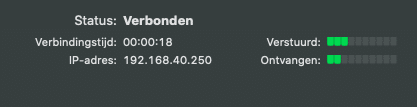
Your Mac is now connected to the internet using PPPoE.
Setting Connection Priority
If you have multiple network connections configured, it may be useful to give the PPPoE connection the highest priority.
Click the gear icon at the bottom of the window and select Set Service Order.
Drag the PPPoE connection to the desired position in the list.

Troubleshooting
If the connection cannot be established, check the following:
- The network cable is connected properly.
- The correct Ethernet adapter has been selected.
- Your username has been entered correctly.
- Your password has been entered correctly.
- Your Wifibri account is active.
If the problem persists, please contact the Wifibri helpdesk.