Connecting a PlayStation via PPPoE
A PlayStation can connect directly to the Wifibri network using PPPoE.
This guide is based on a PlayStation 4. Some menus may look slightly different on other PlayStation models.
Step 1: Connect a Network Cable
Connect your PlayStation to the Wifibri network using an Ethernet cable.
Step 2: Open Settings
Go to Settings.

Step 3: Open Network Settings
Select Network.

Step 4: Set Up the Internet Connection
Select Set Up Internet Connection.
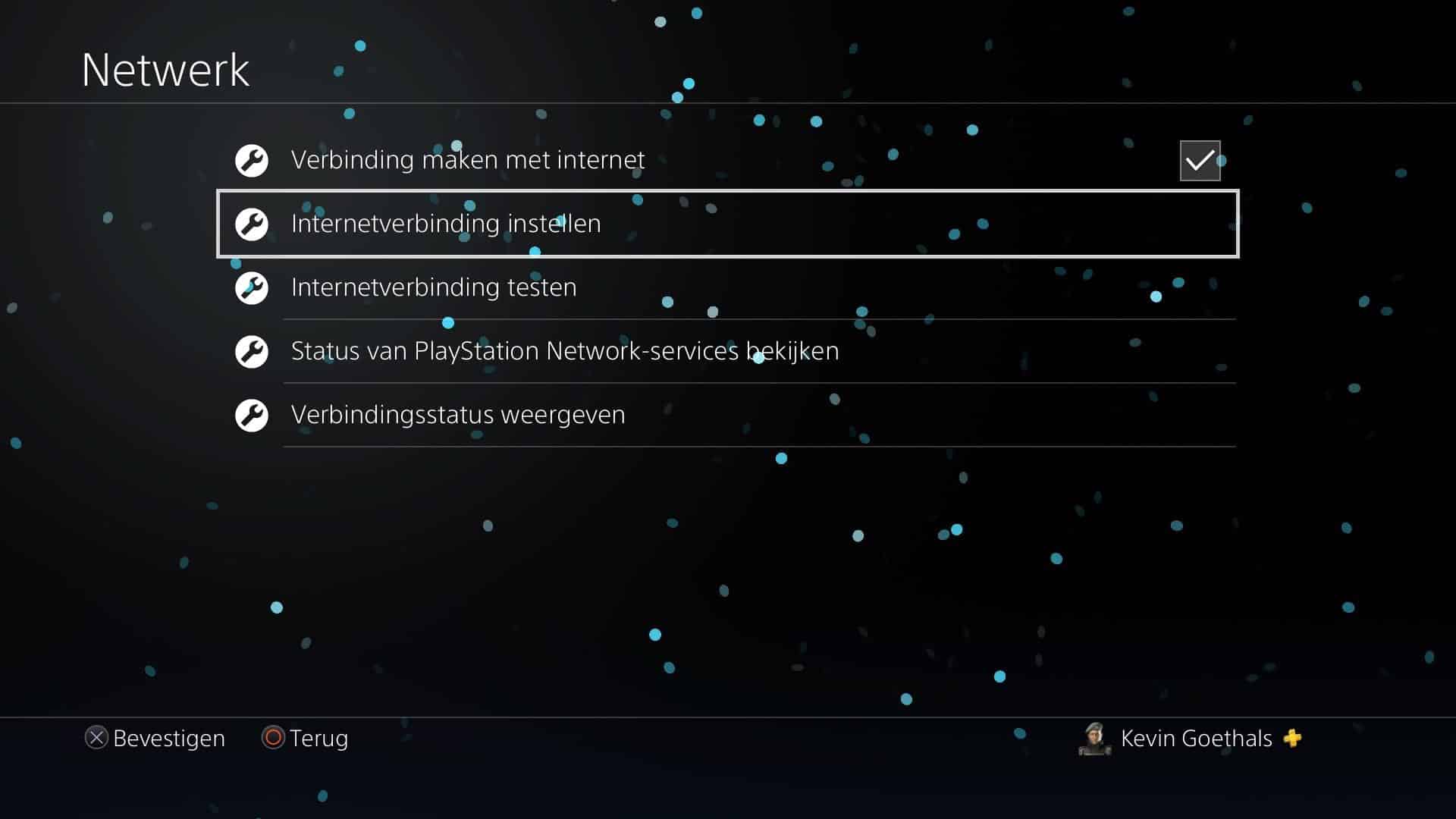
Step 5: Choose a Wired Connection
Select Use a LAN Cable.

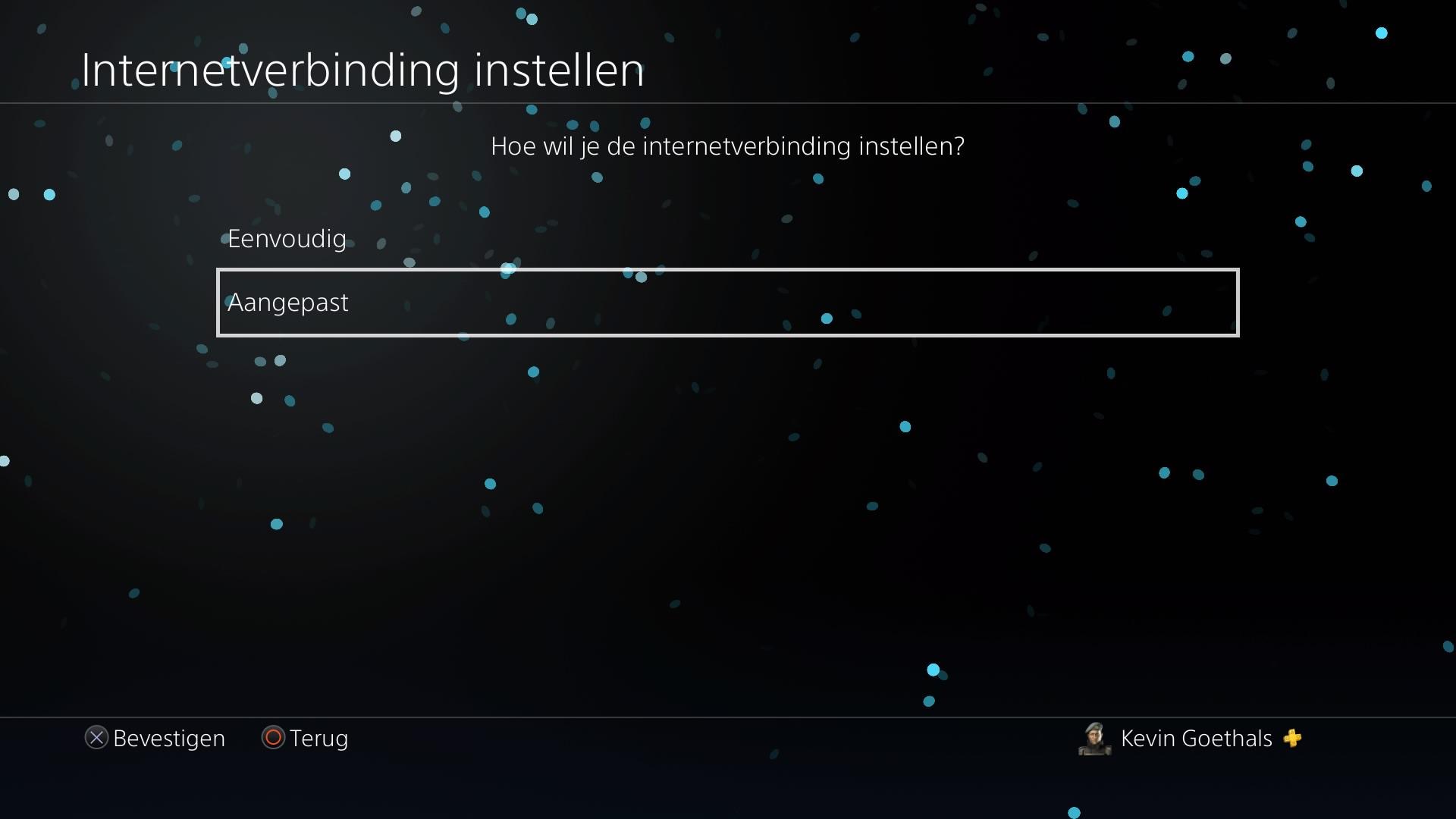
Step 6: Choose Custom Settings
Select Custom.
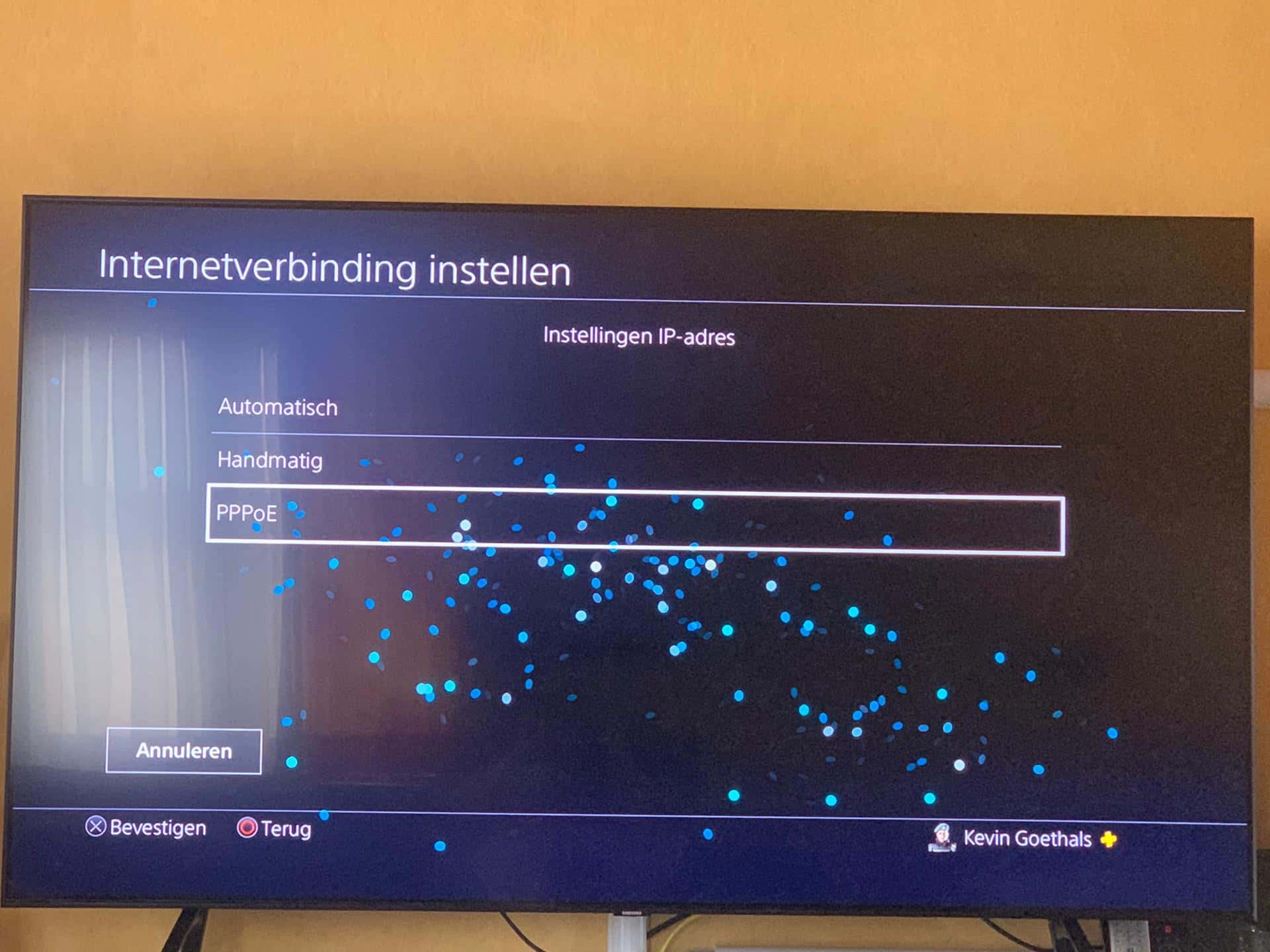
Step 7: Select PPPoE
Choose PPPoE as the connection method.
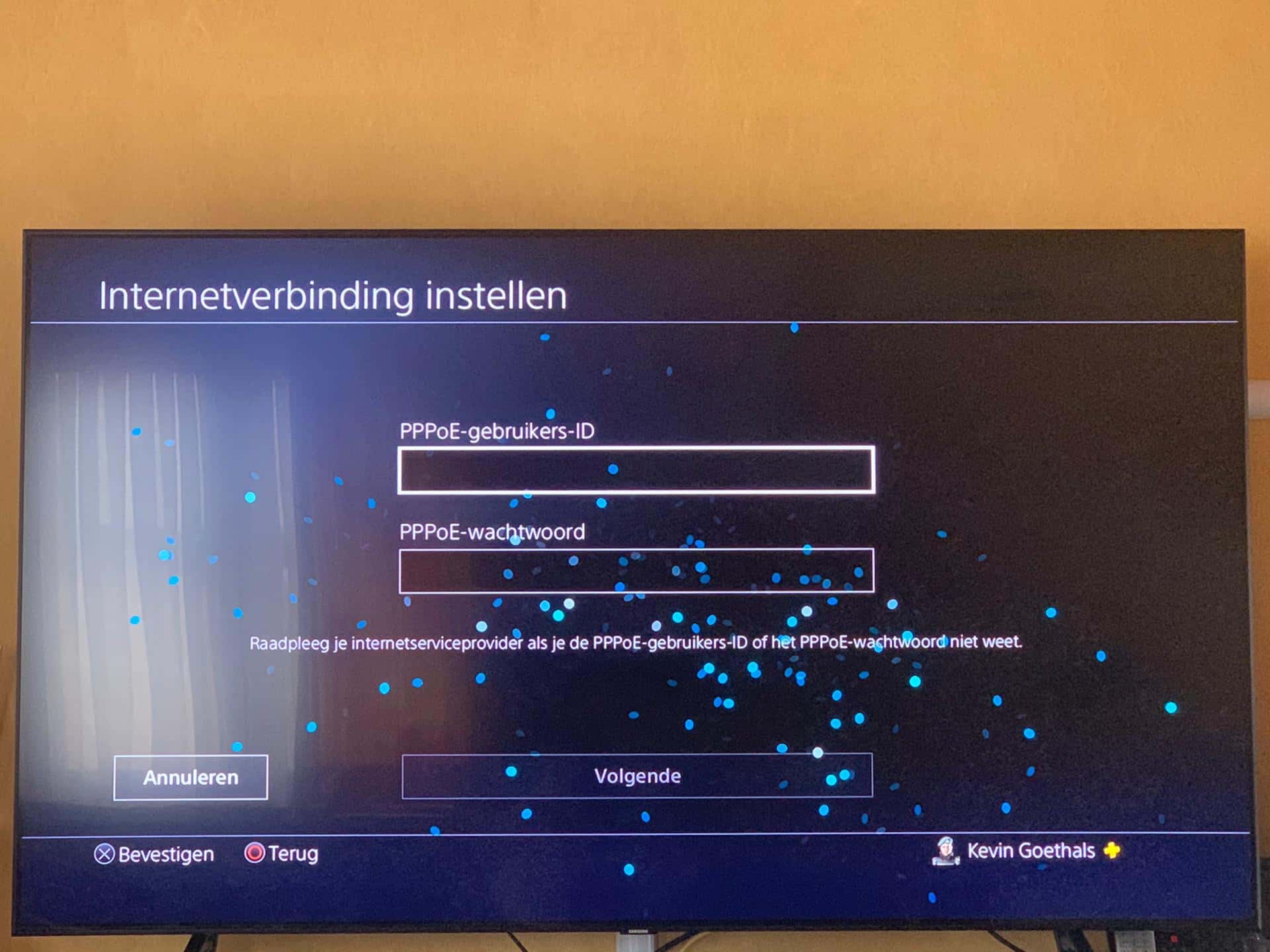
Step 8: Enter Your Wifibri Credentials
Enter your Wifibri username and password.
Click Next.
Step 9: Test the Connection
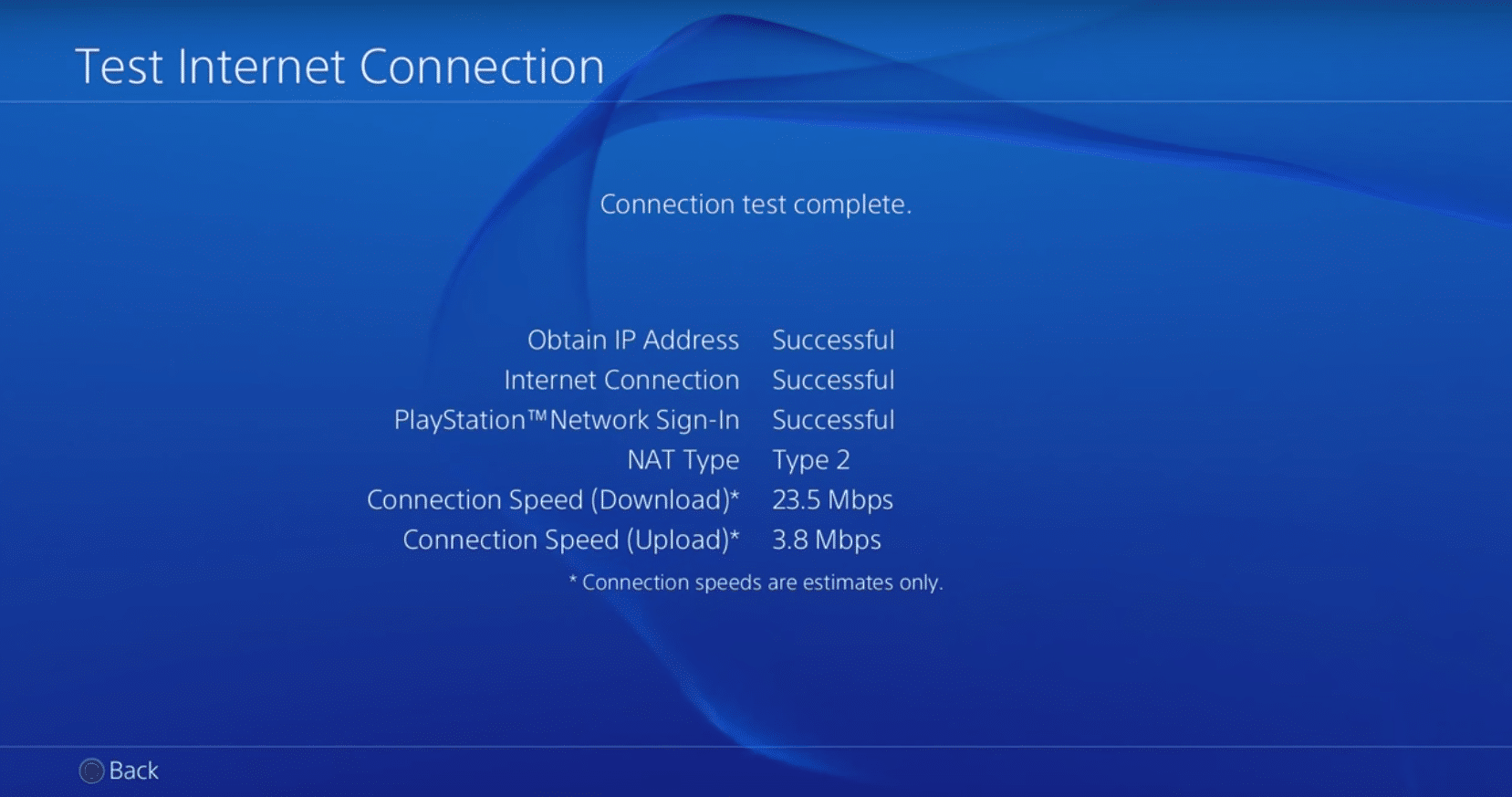
The PlayStation will now attempt to connect to the network.
If the configuration has been entered correctly, the connection test should complete successfully.
PlayStation Network
Once connected, you can sign in to PlayStation Network and use all online features.

Troubleshooting
If the connection cannot be established, check the following:
- The network cable is connected properly.
- Your username has been entered correctly.
- Your password has been entered correctly.
- Your Wifibri account is active.
If the problem persists, please contact the Wifibri helpdesk.