Web Interface
The WiBiBox web interface allows you to view and modify various settings, such as your Wi-Fi name, password and network configuration.
Note
The screenshots and images shown may differ from your WiBiBox in terms of appearance, colours or software version. The functionality and location of the settings generally remain the same.
Connecting to the WiBiBox
To access the web interface, you must first be connected to the WiBiBox.
You can connect:
- via Wi-Fi
- via a network cable
Open the Web Interface
Open a web browser and navigate to:
http://wifibri.hotspotIf this does not work, use:
http://192.168.200.1Log In
After opening the web interface, the login screen will appear.
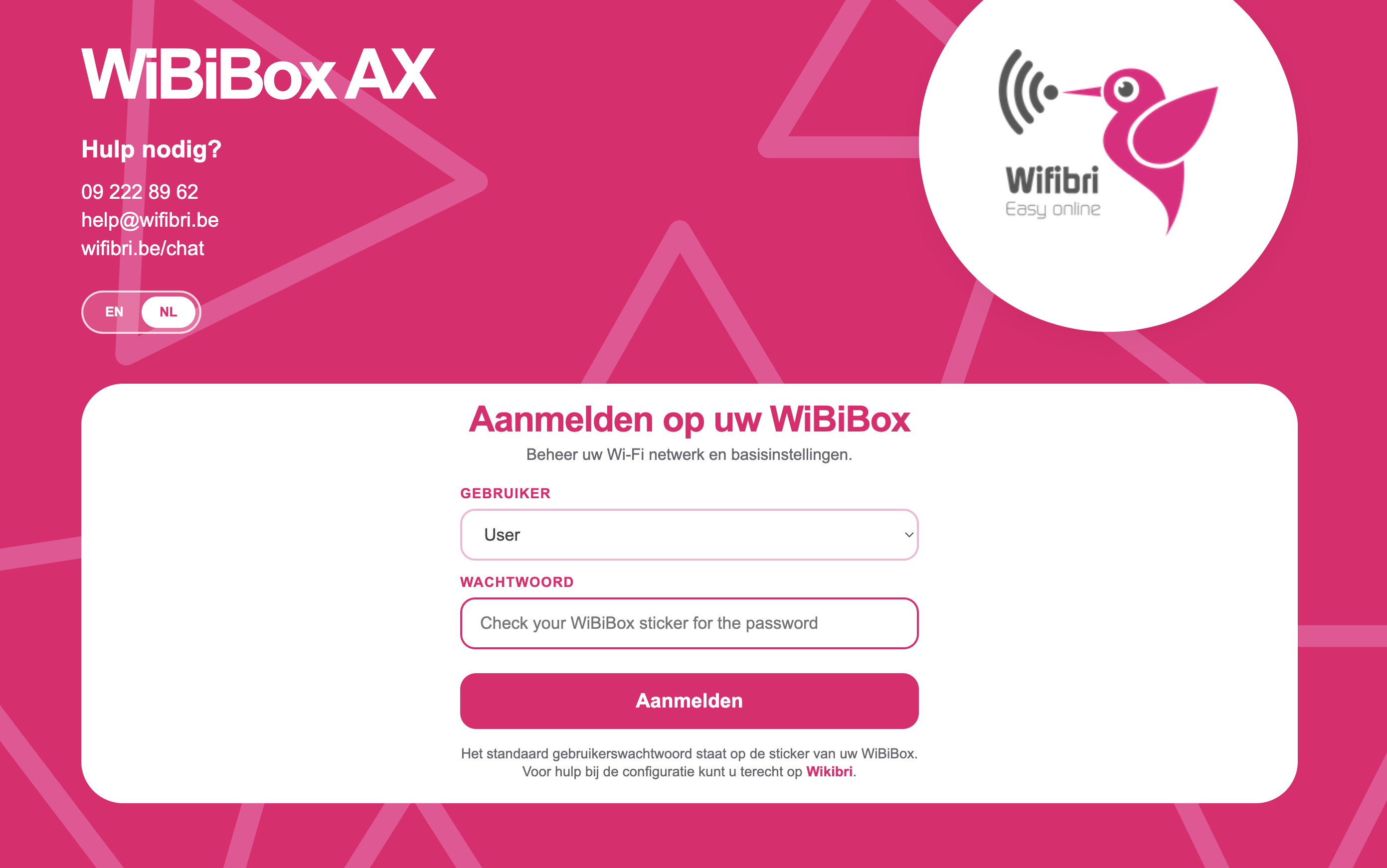
Enter the username and the corresponding password.
The default login credentials can be found on the WiBiBox sticker.
Click Login to sign in.
Main Menu
After logging in, you will have access to the main menu of the web interface.
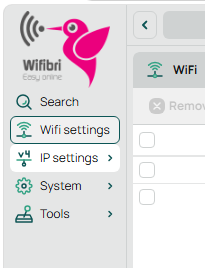
From this menu, you can access the different sections.
| Section | Description |
|---|---|
| WiFi settings | View and manage Wi-Fi names, passwords and connections |
| IP settings | View local network and IP settings |
| System | System information and general settings |
| Tools | Diagnostic and maintenance tools |
WiFi Settings
In this section you can:
- change the Wi-Fi name (SSID)
- change the Wi-Fi password
- view connected devices
➡ See the page WiFi Settings
IP Settings
In this section you can:
- view the current network configuration
- check IP addresses
- review DHCP settings
➡ See the page IP Settings
System
In this section you can find:
- general system information
- software version
- uptime
- device information
➡ See the page System
Tools
This section contains various tools for diagnostics and maintenance.
➡ See the page Tools
Problems Logging In?
Please check the following:
- Your device is connected to the WiBiBox.
- You are using
wifibri.hotspotor192.168.200.1. - The password was entered correctly.
- You are not trying to connect through a mobile network (4G or 5G).
Still unable to log in?
Please contact the Wifibri helpdesk for assistance.