System
Through the System menu, you can view general information about the WiBiBox and perform a number of maintenance tasks.
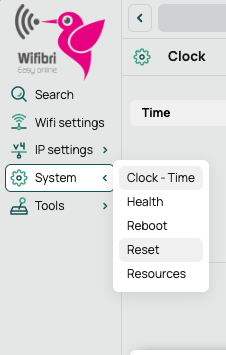
The screenshots shown may differ in appearance or colours from the actual interface, but their functionality and location within the web interface remain the same.
Clock
Under Clock - Time, you can view the current date, time, and time zone of the WiBiBox.
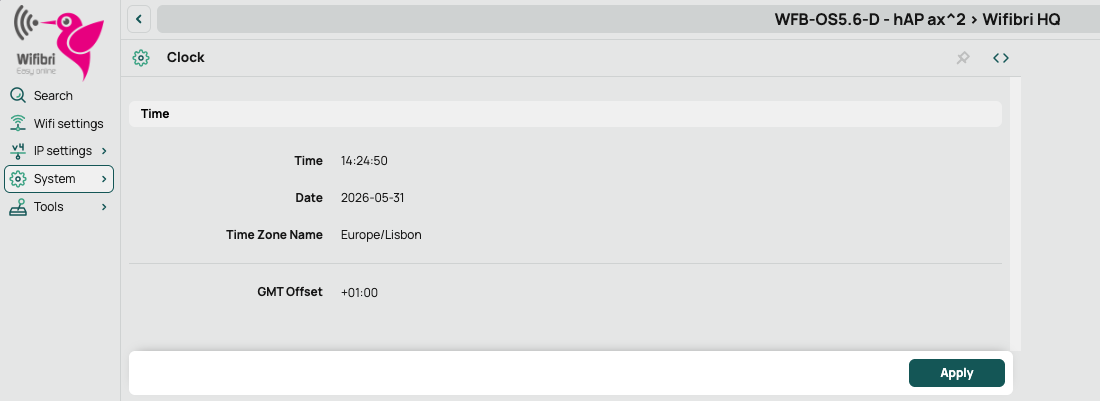
Under normal circumstances, this information is configured automatically and does not need to be changed.
Health
Under Health, you can view the internal sensors of the WiBiBox.
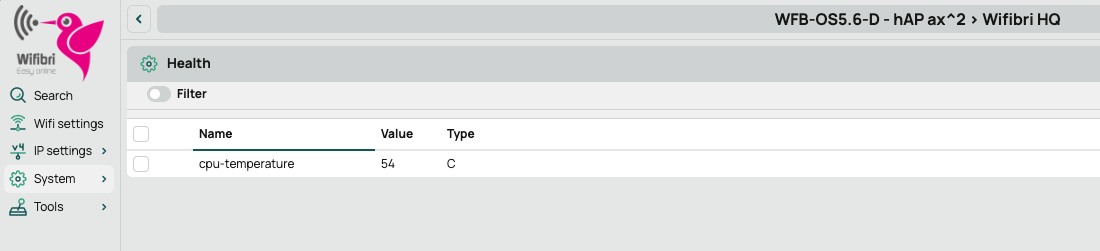
Depending on the model, various values may be displayed here, such as the device temperature.
Resources
Under Resources, you will find technical information about the WiBiBox.
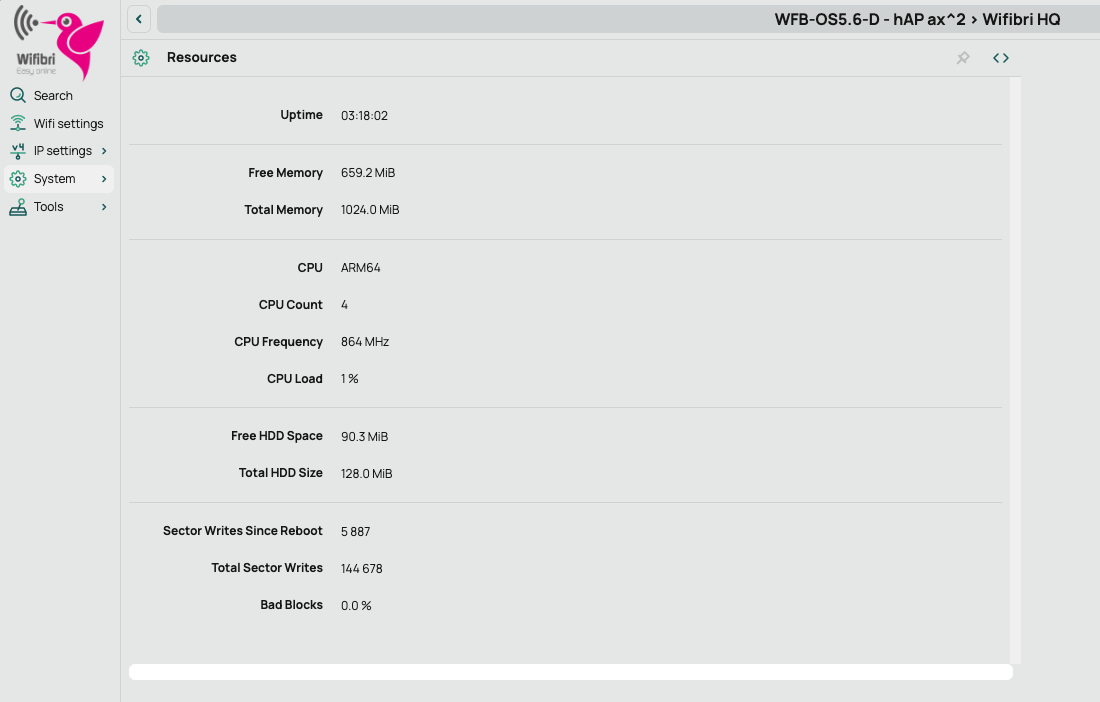
Here you can view information such as:
- How long the WiBiBox has been running
- Available memory
- Processor information
- Storage capacity
- General system information
This information is primarily intended for diagnostics and support purposes.
Rebooting the WiBiBox
Using Reboot, you can restart the WiBiBox.
After confirming the prompt, the WiBiBox will be unavailable for several minutes.

More information can be found on the Rebooting the WiBiBox page.
Resetting the WiBiBox
Using Reset, you can restore the WiBiBox to the default Wifibri configuration.
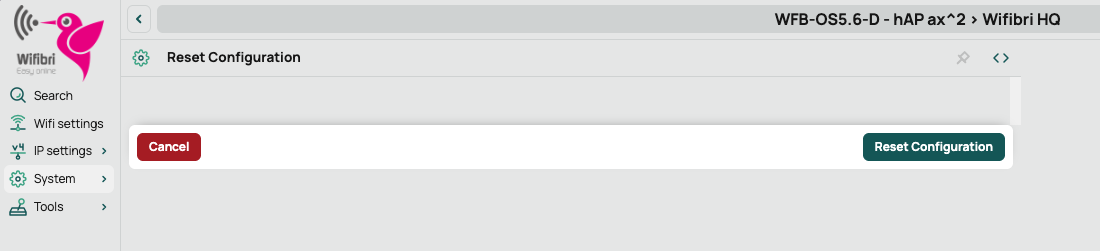
After confirmation, all personal settings will be removed, including for example:
- Custom Wi-Fi network names (SSIDs)
- Custom Wi-Fi passwords
- Static IP addresses
- Kid Control settings
- Other personal configurations

After the reset, the default Wifibri configuration will automatically be restored.
Warning
Only use this function when instructed by the helpdesk or when you are certain that you want to restore all settings to their defaults.