Change Wi-Fi Name and Password
On a WiBiBox GEN5, you can change the name of your wireless network (SSID) and the Wi-Fi password through the web interface.
Warning
Changing the Wi-Fi settings does not affect your internet connection. After saving the changes, all wireless devices will need to reconnect to the new network.
Info
The images, photos and screenshots shown may differ slightly from what you see on your own WiBiBox. Depending on the model and software version, colours, labels and layout may vary, but the functionality remains the same.
Open the WiBiBox
- Connect to your WiBiBox.
- Open a web browser.
- Go to the WiBiBox address.
- Log in using the details shown on the sticker.
Open WiFi Settings
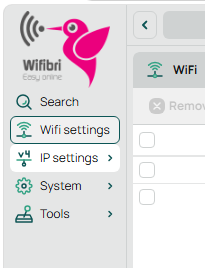
Click WiFi settings on the left.
You will then see four tabs:
- Configuration
- Security
- Registration
- Remote CAP
TAB: Configuration
In the Configuration tab, you can find the wireless networks configured on the WiBiBox.
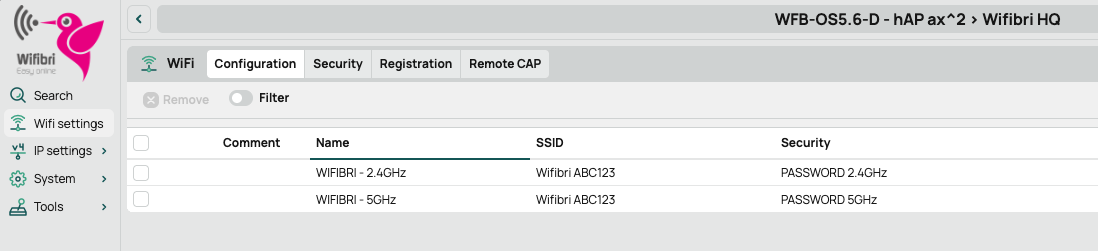
You will usually see:
| Name | Frequency |
|---|---|
| WIBIFRI - 2.4GHz | 2.4 GHz network |
| WIBIFRI - 5GHz | 5 GHz network |
Click the desired network to change its name (SSID).
Change Wi-Fi Name
Click the desired network in the list, for example:
- WIBIFRI - 2.4GHz
- WIBIFRI - 5GHz
The configuration screen will then open.
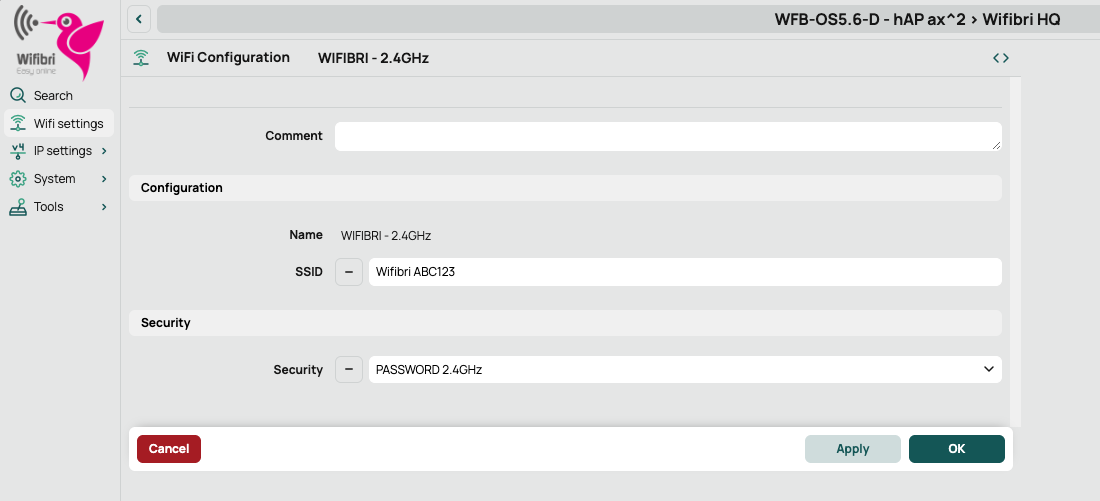
For most users, only these two fields are important:
| Setting | Meaning |
|---|---|
| SSID | The name of your wireless network |
| Security profile | The linked Wi-Fi password |
SSID
The SSID field determines which name is visible when you search for available Wi-Fi networks on a smartphone, tablet or computer.
Security Profile
The Security profile field determines which Wi-Fi password is used for this network.
By default, each network uses its own security profile:
- PASSWORD 2.4GHz
- PASSWORD 5GHz
When both networks use the same security profile, they also share the same Wi-Fi password.
Example:
| Network | Security profile |
|---|---|
| 2.4 GHz | PASSWORD 2.4GHz |
| 5 GHz | PASSWORD 2.4GHz |
In this case, both the 2.4 GHz and 5 GHz networks use the same password.
Tip
Do you want to use one password for both networks? Select the same Security profile for both networks.
Info
Changing the actual Wi-Fi password is done in the Security tab.
TAB: Security
In the Security tab, you manage the Wi-Fi password.
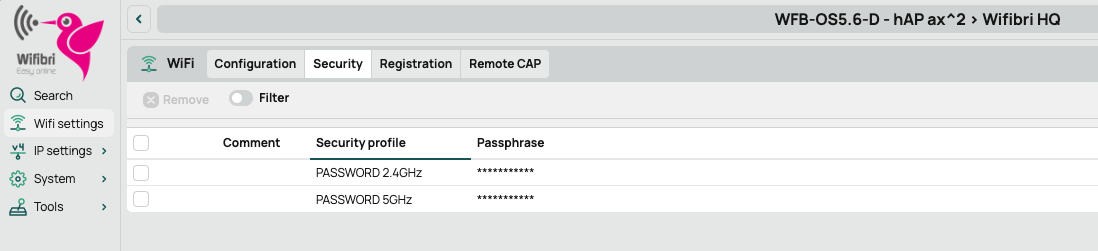
You will normally see:
- PASSWORD 2.4GHz
- PASSWORD 5GHz
Click the desired profile to change the password.
Change Wi-Fi Password
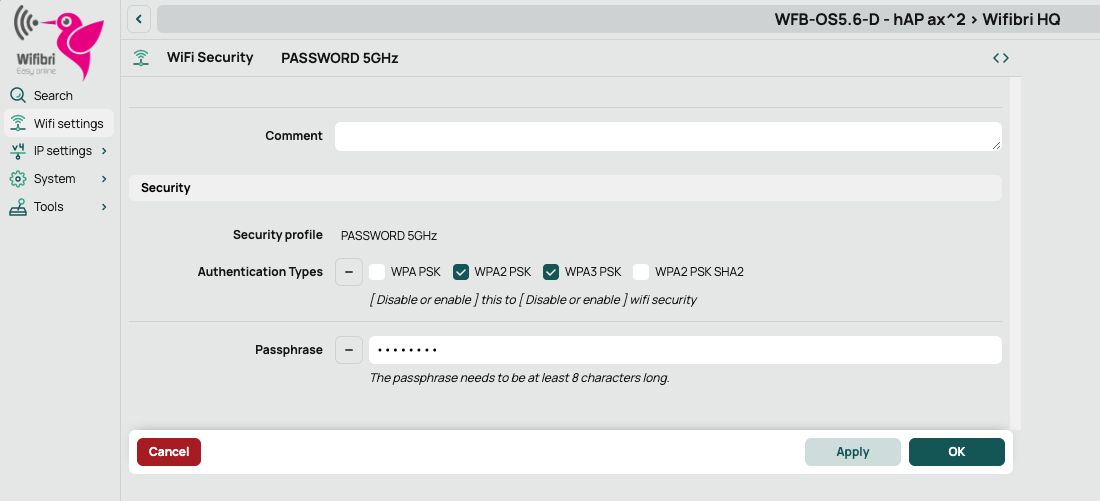
The most important field is:
| Setting | Meaning |
|---|---|
| Passphrase | The Wi-Fi password |
Change the desired password and then click Apply and OK to save the change.
Warning
After changing the password, all wireless devices must reconnect to the Wi-Fi network.
Security Type
Depending on the WiBiBox model and the installed software version, one or more security types may be available.
Possible security types include:
- WPA PSK
- WPA2 PSK
- WPA2 PSK SHA2
- WPA3 PSK
In most cases, one or more security types are enabled so both older and newer devices can connect to the network.
| Type | Description |
|---|---|
| WPA | Older security standard |
| WPA2 | Standard security for most devices |
| WPA2 SHA2 | Improved WPA2 authentication |
| WPA3 | Newer and more secure security standard |
Info
The available options may differ depending on the WiBiBox model and the installed software version.
Tip
Only change these settings when necessary or when instructed by the Wifibri helpdesk.
TAB: Registration
In the Registration tab, you can see which devices are currently connected to the wireless network of your WiBiBox.
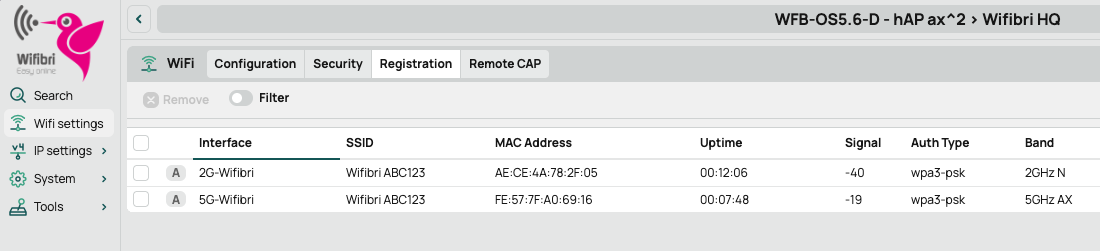
For each connected device, the following information may be displayed:
| Field | Meaning |
|---|---|
| Interface | Which Wi-Fi radio the device is connected through |
| SSID | The wireless network the device is connected to |
| MAC Address | Hardware address of the connected device |
| Uptime | How long the device has been connected |
| Signal | Strength of the received Wi-Fi signal |
| Tx Rate | Maximum speed from the WiBiBox to the device |
| Rx Rate | Maximum speed from the device to the WiBiBox |
Here you can quickly check:
- Which devices are connected
- How long they have been connected
- How strong the Wi-Fi signal is
- At what speed they are connected
View More Information
Click a device in the list to view additional connection information.
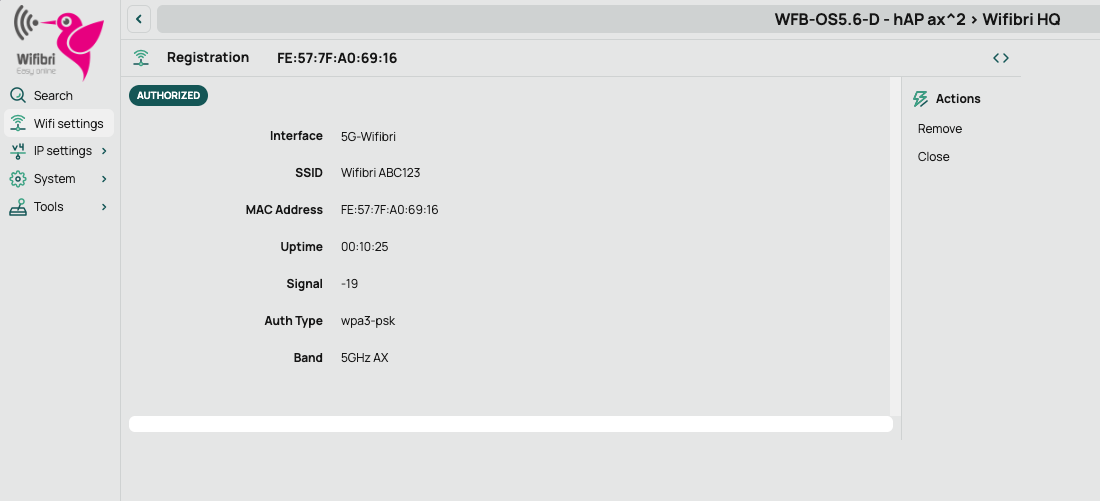
There you will find additional details such as:
- Current transmit and receive speed
- Traffic in bytes and packets
- Connection status
- Detailed signal information
Tip
A signal between approximately -30 dBm and -65 dBm is generally considered excellent.
Info
The displayed Tx Rate and Rx Rate are the Wi-Fi connection speeds between the device and the WiBiBox. This is not necessarily the same speed as your internet connection.
Tip
Do you not see a device in the list? Check whether the device is connected to the correct Wi-Fi network and whether Wi-Fi is enabled.
TAB: Remote CAP
In the Remote CAP tab, you can see all WiBiBox devices that broadcast wireless networks within your installation.
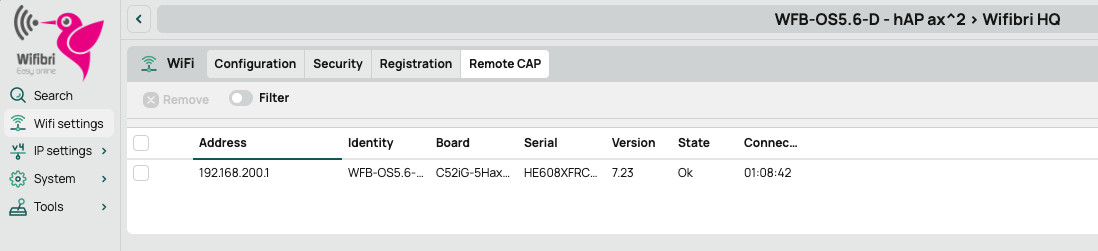
This is especially useful when multiple WiBiBox devices are present, for example:
- A main device
- Additional WiBiBox devices
- Wi-Fi boosters or access points
For each device, you can find information such as:
- IP address
- Device name
- Device type
- Serial number
- Software version
View Device Information
Click a device in the list to view more information.
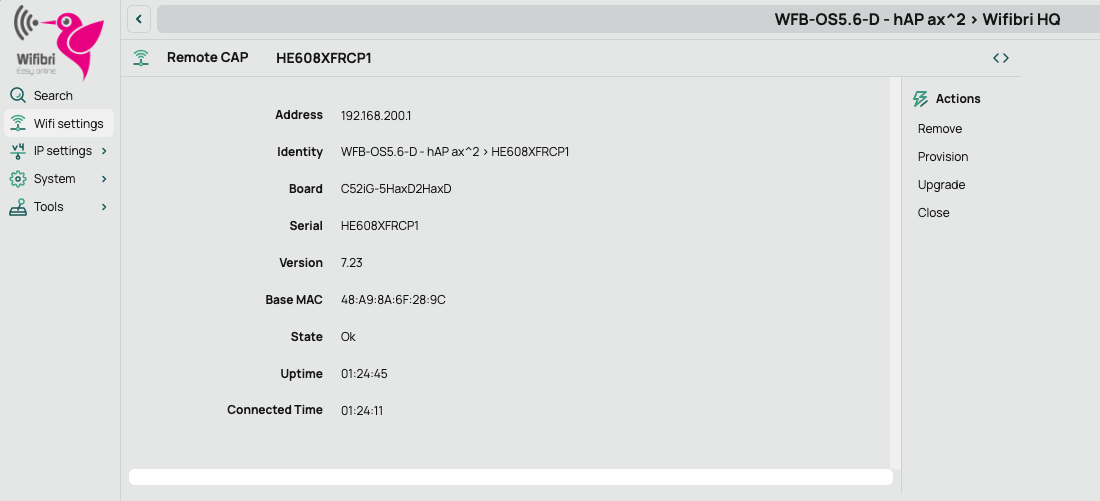
Here you can find details such as:
| Field | Meaning |
|---|---|
| Identity | Device name |
| Board | WiBiBox type |
| Serial | Device serial number |
| Version | Installed software version |
| Base MAC | Hardware address of the device |
| State | Connection status |
This information can be useful when the Wifibri helpdesk asks for the device type, serial number or software version.
Info
For installations with multiple WiBiBox devices or Wi-Fi boosters, a separate entry is shown for each device.
Tip
The serial number is often used to identify a device within the Wifibri network.